How to Clean a Computer Screen: The Ultimate Guide
Are you tired of looking at a dirty computer screen every time you sit down to work?
Not only can a dirty screen be visually distracting, but it can also affect the brightness, contrast, and overall performance of your monitor.
Additionally, a dirty screen can strain your eyes, especially if you spend long hours in front of your computer.
In this comprehensive guide, we will walk you through the best and safest methods to clean your computer screen effectively.
From choosing the right cleaning materials to avoiding common mistakes, we’ve got you covered. So, let’s dive in and learn how to keep your computer screen sparkling clean!
Why Clean Your Computer Screen Regularly?
Before we delve into the cleaning process, let’s understand why it’s crucial to clean your computer screen regularly.
Here are a few reasons:
- Visual Clarity: A clean screen provides optimal visual clarity, allowing you to enjoy crisp images, sharp text, and vibrant colors.
- Eye Health: Working on a dirty screen can strain your eyes, leading to eye fatigue, discomfort, and even headaches. Cleaning your screen can help alleviate these issues.
- Longevity: Regular cleaning helps prolong the lifespan of your computer screen by preventing dust and dirt from accumulating and potentially causing damage.
- Enhanced Performance: A clean screen ensures optimal brightness, contrast, and overall performance, enhancing your computing experience.
Now that you understand the importance of maintaining a clean computer screen, let’s move on to the step-by-step process of cleaning it effectively.
Step 1: Gather the Necessary Cleaning Materials
Before you begin, gather the following cleaning materials:
- A soft, lint-free cleaning cloth (microfiber is the best option, but cotton can also work)
- Distilled water or a gentle cleaning solution (avoid using harsh chemicals)
- Optional: Isopropyl alcohol or white vinegar (diluted with distilled water)
- Compressed air can or a soft-bristle brush
Having the right cleaning materials is essential to avoid damaging your computer screen. Let’s look at each item in detail:
Cleaning Cloth
When it comes to choosing a cleaning cloth, microfiber is the preferred option.
Microfiber cloths are designed to attract dust particles and are gentle enough to clean delicate surfaces without scratching.
If you don’t have a microfiber cloth, a soft, lint-free cotton cloth, such as a clean cotton T-shirt or a cotton tea towel, can also work.
Cleaning Solution
For general cleaning, distilled water is sufficient to remove most smudges and fingerprints.
However, if you encounter stubborn grime or oily stains, you may need a gentle cleaning solution.
Avoid using harsh chemicals, such as ammonia or alcohol-based cleaners, as they can damage your screen.
Instead, opt for a commercial cleaning solution specifically designed for computer screens or create a homemade solution using a 50/50 mixture of distilled water and white vinegar.
Compressed Air Can or Soft-Bristle Brush
To tackle dust and debris in hard-to-reach areas, such as between the keys of your keyboard or the crevices around your screen, you can use a can of compressed air or a soft-bristle brush.
This will help dislodge any particles that may have settled in these areas.
Now that you have gathered your cleaning materials, let’s move on to the next step.
Step 2: Power Off Your Computer
Before you start cleaning, it’s essential to power off your computer completely.
This will prevent any accidental keystrokes or electrical mishaps while you clean your screen.
Additionally, turning off your computer allows you to see the dirt, grime, and smudges more clearly, making the cleaning process more effective.
Step 3: Dust Off the Screen
With your computer powered off, it’s time to remove the dust from your screen. Dust particles can accumulate over time, affecting the screen’s clarity and performance.
Follow these steps to effectively dust off your computer screen:
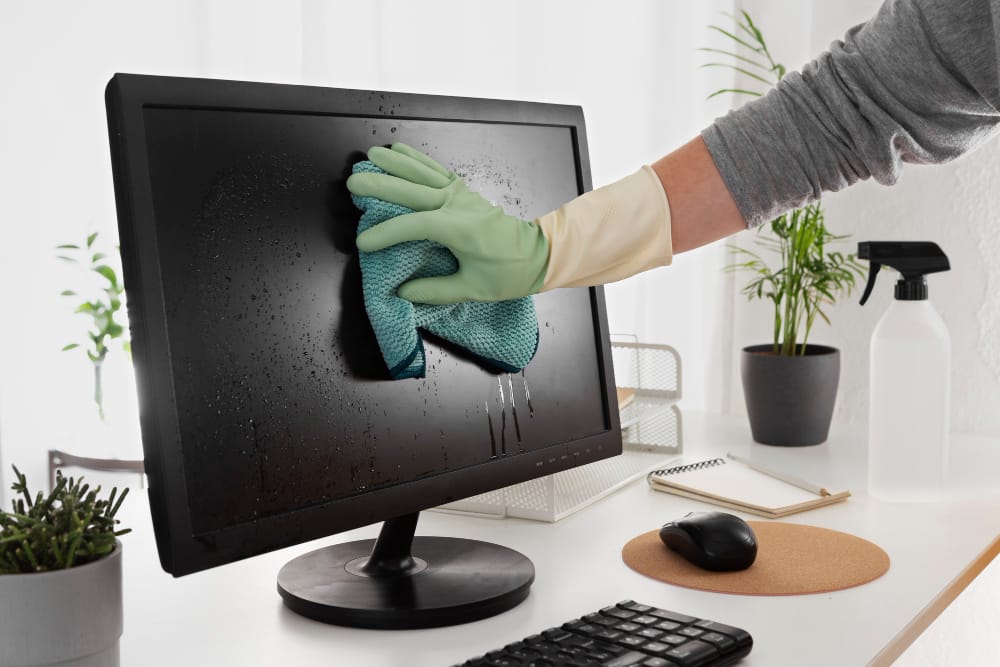
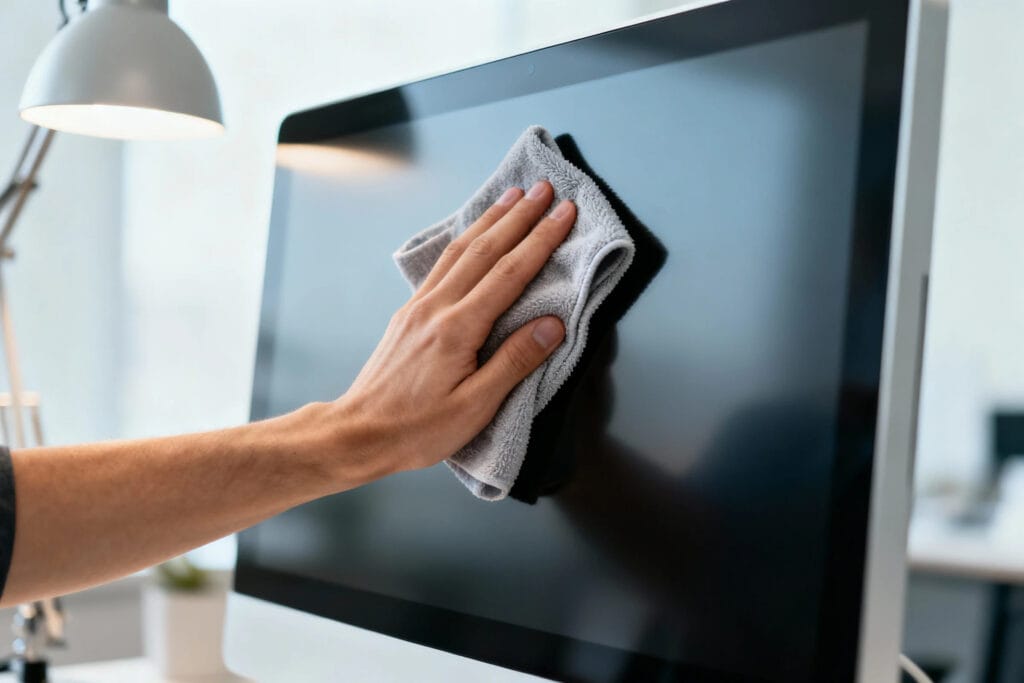
- Take your soft, lint-free cleaning cloth (microfiber or cotton) and gently wipe the screen’s surface in a slow, circular motion. Avoid applying excessive pressure, as this can damage the screen.
- Start from one side of the screen and move in a systematic manner until you’ve covered the entire surface.
- Pay attention to the corners and edges of the screen, as they tend to collect more dust.
- If there are any hard-to-reach areas, use a can of compressed air or a soft-bristle brush to dislodge the dust.
By dusting off your screen regularly, you can maintain its cleanliness and prevent the accumulation of dirt and debris.
Step 4: Wet-Clean the Screen
In some cases, dusting alone may not be enough to remove stubborn smudges, fingerprints, or oily stains from your computer screen.
In such situations, wet-cleaning is necessary. Follow these steps to wet-clean your computer screen safely:
- If you’re using a commercial cleaning solution, follow the manufacturer’s instructions for application. If you prefer a homemade solution, dilute white vinegar with distilled water in a 50/50 ratio.
- Moisten your cleaning cloth with the cleaning solution. Ensure that the cloth is damp and not dripping wet.
- Gently wipe the screen’s surface using the damp cloth, moving in small, circular motions.
- Pay extra attention to areas with visible smudges or stains. Allow the cleaning solution to soak into these areas for a few moments to loosen the grime.
- If necessary, reapply the cleaning solution to the cloth and continue wiping until all smudges and stains are removed.
- Avoid spraying the cleaning solution directly onto the screen, as this can cause excess liquid to seep into the monitor and potentially damage internal components.
Step 5: Allow the Screen to Dry
After wet-cleaning your screen, it’s essential to allow it to dry thoroughly before turning your computer back on.
Follow these guidelines to ensure proper drying:
- Let the screen air dry naturally. Avoid using a blow dryer or any source of heat, as excessive heat can damage the protective layer of your computer screen.
- Check for any excess moisture on the screen’s surface. If needed, use a dry portion of your cleaning cloth to gently remove any remaining moisture.
- Inspect the screen from different angles to ensure that it is completely dry.
- Once you’re confident that the screen is dry, you can power on your computer and resume your work.
Additional Tips for Cleaning Your Computer Screen
Here are a few additional tips to enhance your computer screen cleaning routine:
Avoid Using Harsh Chemicals
When cleaning your computer screen, always avoid using harsh chemicals like ammonia, alcohol, or acetone.
These substances can strip the screen’s protective coating, leading to permanent damage.
Stick to gentle cleaning solutions, such as distilled water or commercial screen cleaning products specifically designed for computer screens.
Don’t Apply Excessive Pressure
While cleaning your screen, avoid applying excessive pressure, as this can lead to scratches or other damage.
Instead, use gentle, circular motions with a soft, lint-free cloth to remove dirt and grime.
Clean Your Keyboard and Mouse
To maintain overall cleanliness and prevent dust and debris from accumulating on your computer screen, regularly clean your keyboard and mouse as well.
Use a can of compressed air or a soft-bristle brush to remove dust, and wipe the surfaces with a damp cloth or disinfecting wipes.
Establish a Cleaning Routine
To keep your computer screen clean and smudge-free, establish a regular cleaning routine.
Aim to clean your screen at least once a week or whenever you notice visible dirt, smudges, or fingerprints.
Consistency is key to maintaining a clear and visually pleasing screen.
Conclusion
Cleaning your computer screen is a simple yet essential task that can enhance your computing experience and prolong the lifespan of your monitor.
By following the step-by-step process outlined in this guide, you can keep your screen free from dust, smudges, and grime.
Remember to gather the necessary cleaning materials, power off your computer, dust off the screen, wet-clean when needed, and allow the screen to dry thoroughly.
With a clean and clear computer screen, you’ll enjoy optimal visual clarity and reduce eye strain while working or browsing the web.
Now that you know how to clean a computer screen effectively, put this knowledge into practice and enjoy a sparkling clean screen for your daily computing needs!


 Shery
Shery